A Google Account passkey lets you sign in using the screen lock on your phone or computer, such as a PIN, fingerprint or face scan. You don’t have to give up your password to try it. Start by checking how you’d get back into the account if that device went missing.

Check your recovery options before adding a passkey
Open your Google Account and go to Security & sign-in. Check that your recovery phone and email are current, and that you can actually open the recovery inbox. Google says changes to a recovery phone can take up to seven days to take effect. Don’t treat a just-updated number as your only option.
Use a device you personally own and control. Google warns that anyone who can unlock a device with your passkey can use it to access your account, even if you’ve signed out of Google there.
Set it up and test it without closing your working session
Open Passkeys and security keys, confirm you’re in the right account, then choose Create a passkey and follow your device or password manager’s prompt. Your fingerprint or face unlocks the passkey locally; Google doesn’t receive that biometric data as part of sign-in.
Keep your current session open. Test the passkey in a separate session, then confirm you can reach Try another way if you dismiss the passkey prompt. The fallback options on offer depend on your account. A work or school administrator can restrict whether a passkey can replace a password.
Keep the password prompt or remove an old passkey
| If you want to… | What to do |
|---|---|
| See the password prompt first | Under Security & sign-in, turn off Skip password when possible. You can still use a passkey as a second step if enrolled in 2-Step Verification. |
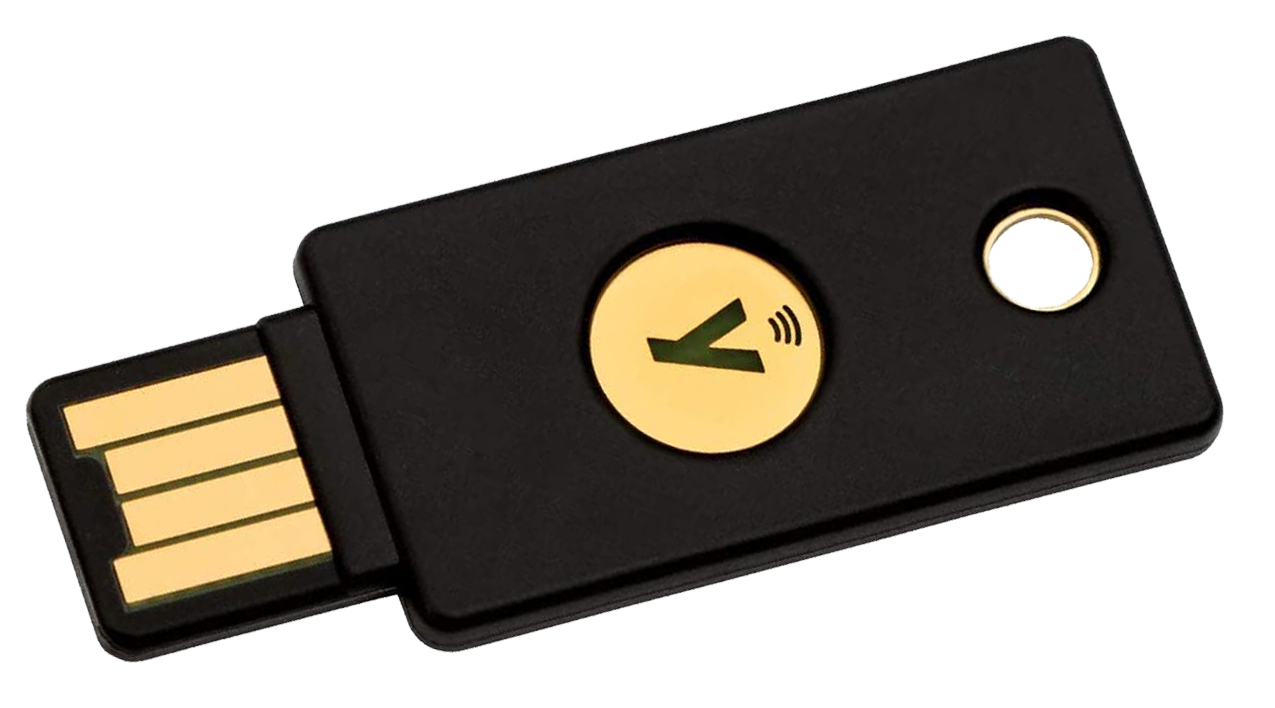
| Remove a passkey you created | Open Passkeys and security keys, select that passkey and choose Remove. |
| Remove an Android passkey Google registered automatically | In Security & sign-in, open Manage all devices and sign out of the device. |
Google’s passkey instructions cover setup and both removal routes. If you’re replacing a phone you still have, check that the new one can sign in before you erase or trade in the old one.